
Track freelance clients and invoices in Notion
Three linked Notion databases that show every client, every project and every unpaid invoice on one page, so you always know who owes you money.
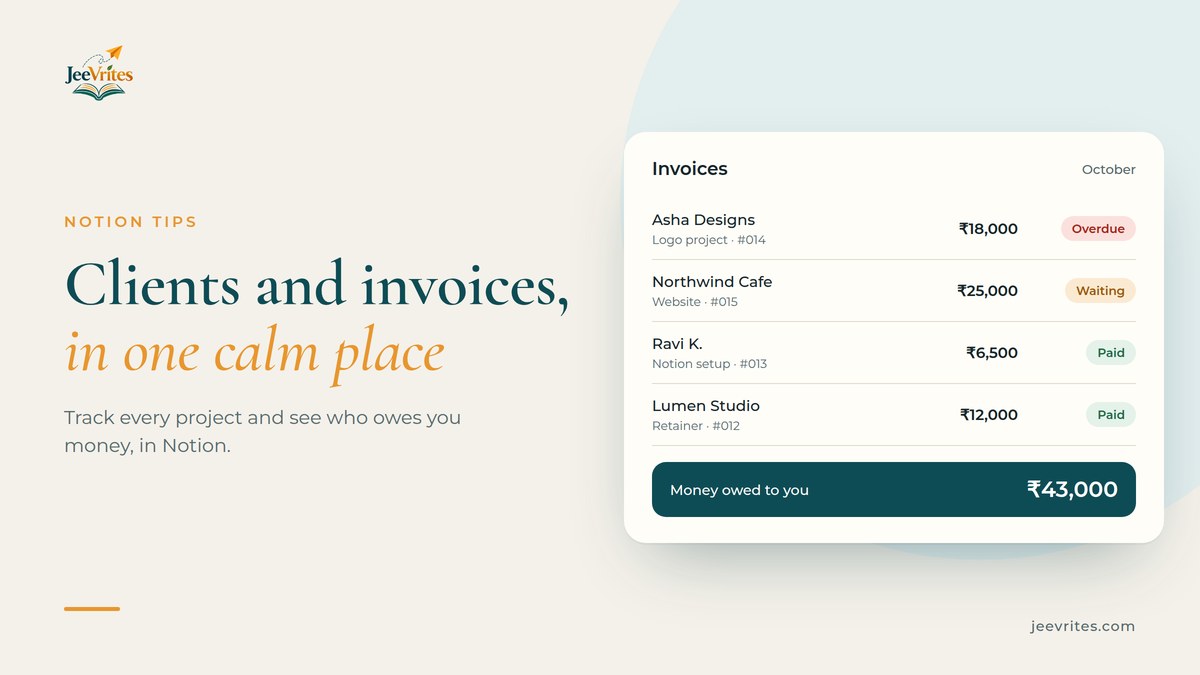
Freelancing has two jobs: the work you’re paid for, and the admin nobody pays you for. The admin is where money leaks. A follow-up you forgot, an invoice you never sent, a client who “will pay next week” for the third week running.
You don’t need accounting software to fix this. Three linked Notion databases will show every client, project and unpaid invoice on one page. This guide walks through the setup.
The three databases
Create three databases in one Notion page called Freelance HQ:
| Database | One row is… | Key properties |
|---|---|---|
| Clients | a person or company you work with | Contact, Email, WhatsApp, Country, Currency, Source, Status |
| Projects | a piece of work for a client | Client (relation), Fee, Start, Due, Stage |
| Invoices | a bill you send | Project (relation), Amount, Sent on, Due on, Paid on, Status |
The magic is in the relations. A project links to its client and an invoice links to its project, so every client page can show all of that client’s work and money without you copying anything.
1. Clients: who you work with
Add a row for every client, including past ones. Two properties are worth adding that most templates miss:
- Source (select): Referral, Instagram, LinkedIn, Upwork, Website. After six months you’ll know which channel brings your best clients.
- Currency (select): INR, USD, GBP, EUR. If you work with clients abroad, this saves confusion at invoice time.
Set Status to Lead, Active or Past. Group the database by Status and you have a tiny CRM.
2. Projects: what you’re working on
Each project gets a Client relation, a Fee, a Due date and a Stage: Proposal, In progress, Review, Done.
Add a Board view grouped by Stage. This becomes your weekly work view. Add a filter for Stage is not Done, and you’re looking only at what needs attention.
Tip: add a Rollup on the Clients database that sums Fee from Projects. You’ll see your lifetime value per client, which is useful when you decide whose rate to raise.
3. Invoices: who owes you money
This is the database that pays for the whole setup. Every invoice gets an Amount, a Sent on date, a Due on date and a Paid on date.
Now add a formula property called State that works out where each invoice stands on its own:
if(!empty(prop("Paid on")), "Paid",
  if(empty(prop("Sent on")), "Not sent",
    if(prop("Due on") < now(), "Overdue", "Waiting")))
Create a view called Chase list, filtered to State is Overdue and sorted by Due on, oldest first. Open it every Monday. That’s your follow-up list for the week.
4. A monthly income view
Add a formula called Month on Invoices that turns Paid on into a label:
formatDate(prop("Paid on"), "YYYY-MM")Then add a Table view grouped by Month, with the Amount column set to show the Sum. In one glance you can see what you actually earned each month, not what you invoiced.
If you work in more than one currency, group by Currency inside each month, or keep a separate Amount (INR) property and fill it with the rupee value you received.
A simple weekly routine
Ten minutes every Monday keeps the whole system honest:
- Move projects across the board to their real Stage.
- Send invoices for anything that reached Done.
- Open Chase list and send a polite reminder for each overdue invoice.
- Mark anything paid with its Paid on date.
For reminders, keep it short and specific: “Hi Priya, a quick reminder that invoice #014 for the logo project (₹18,000) was due on 3 October. Could you let me know when it’s scheduled? Thanks!” Most late payments are forgetfulness, not refusal.
What about GST and invoice formats?
Notion tracks your invoices; it doesn’t replace a proper invoice document. Create the invoice itself in your usual tool, and paste its number and PDF link into the Invoices row. If you’re registered for GST, add your GSTIN and the client’s to the Clients database so they’re at hand when you bill. For tax questions, a chartered accountant is the right person to ask.
Want it ready-made?
The Freelance Client Hub is a ready-made version of this idea: a client database from lead to long-term client, a project board from Proposed to Paid with due labels that update themselves, a “Money owed to you” view, a deadline calendar, and proposal, invoice email and late-payment reminder templates. Duplicate it and you’re running in ten minutes, on Notion’s free plan.
If you also juggle brand collaborations, read how to track brand deals in Notion.